

Workspaces
An isolated tenant. Agents, keys, budgets and audit records belong to exactly one workspace, and never leak across into another.
Workspaces let one organisation hold several isolated tenants, each with its own budgets and audit trail.
Managing workspaces
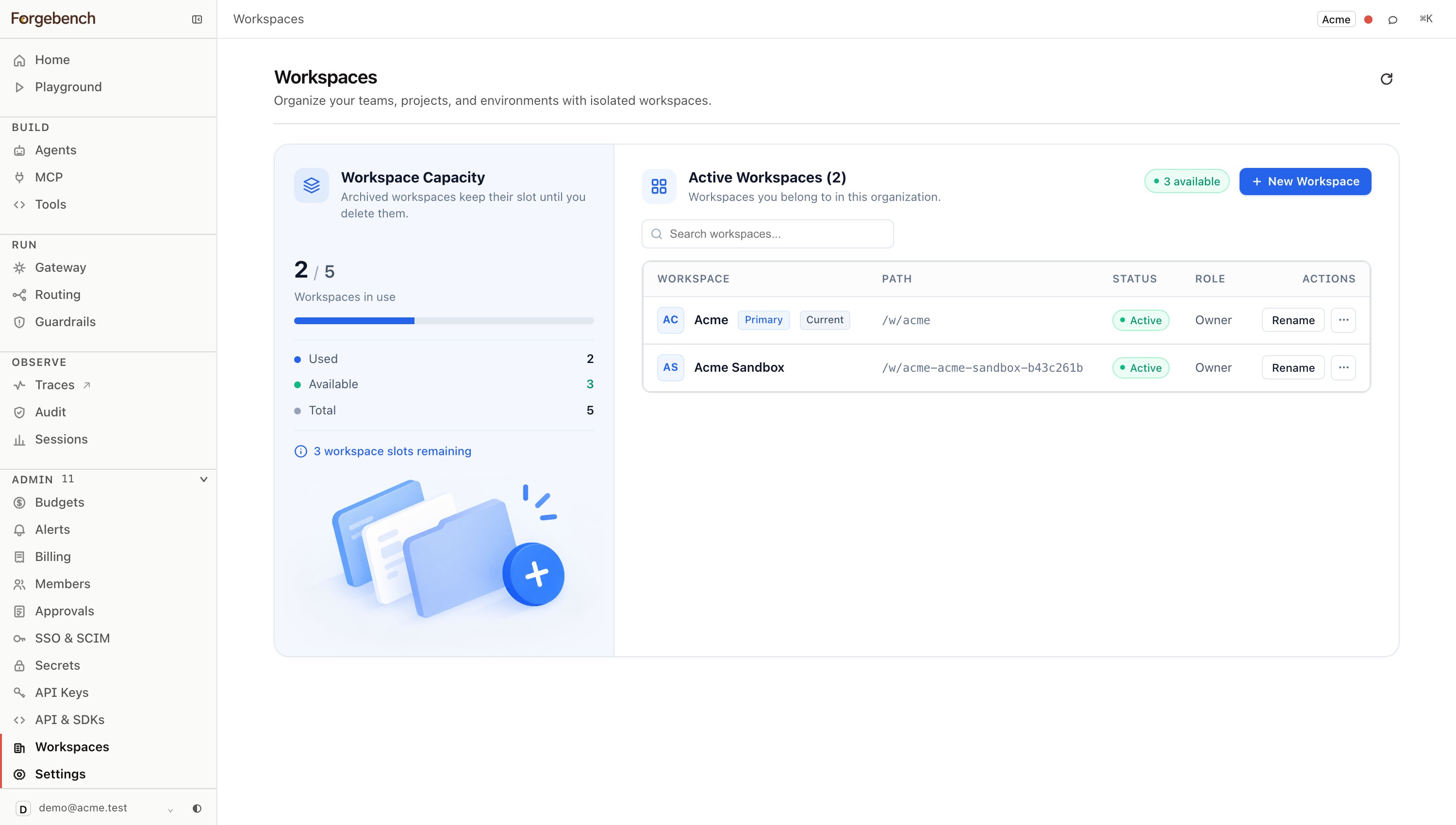
Open Workspaces
In the sidebar, expand Admin and choose Workspaces.
Create
Give it a name; the URL slug is derived automatically. Creating, renaming or archiving requires being in the primary workspace, or holding a
workspaces:managegrant delegated by an owner.Rename or archive
Renaming is immediate. Archiving is soft — all data and history are preserved, the workspace just stops counting against your plan's workspace limit and drops out of the default switcher. The primary workspace cannot be archived; set another workspace as primary first.
Switch
Pick Switch to workspace from any row's menu to move your session there.
Switching from the sidebar footer
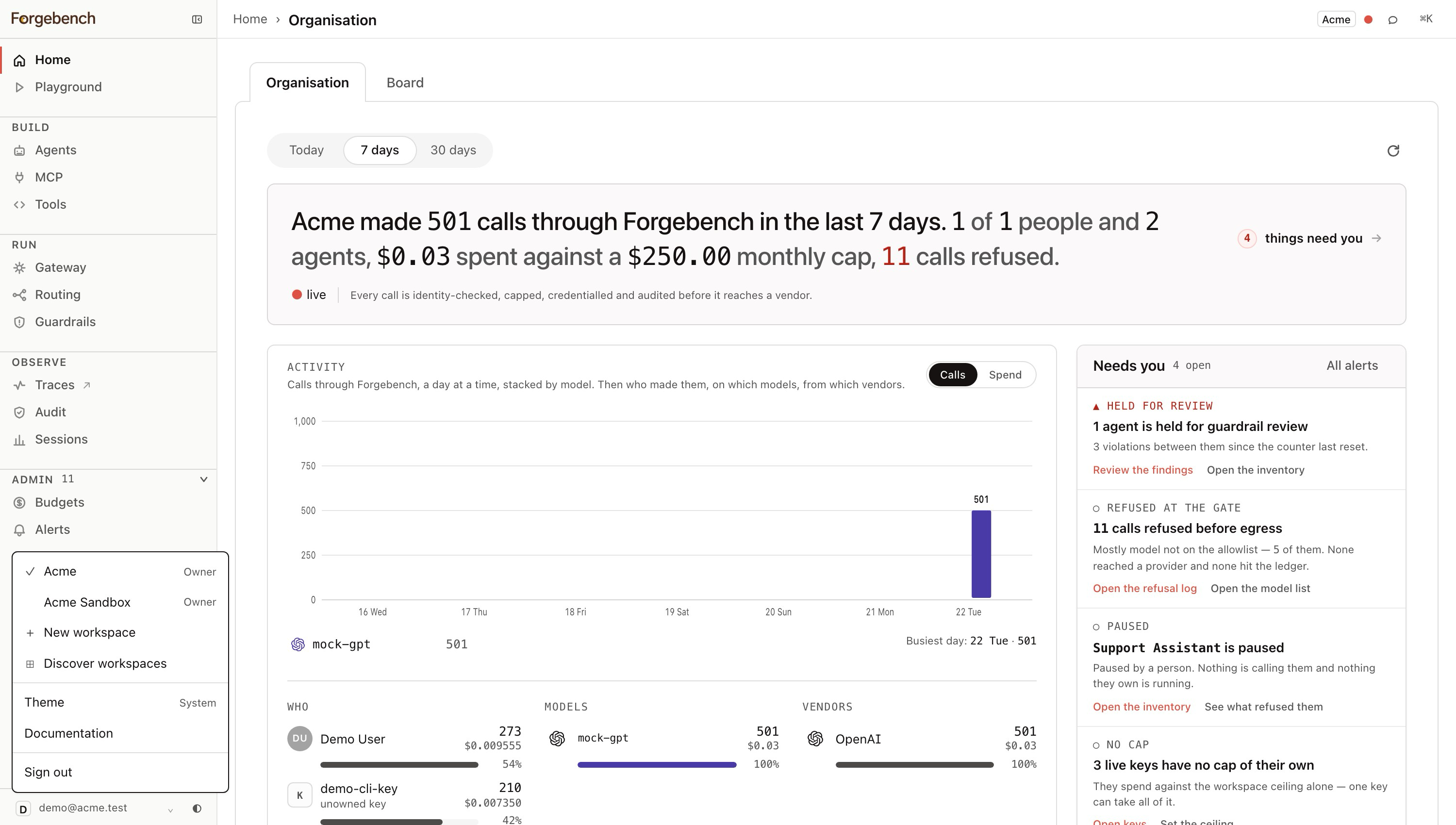
The fastest path doesn't go through the admin page at all — your account row at the bottom of the sidebar is itself the switcher.
Click your account row, bottom-left
Opens a menu listing every workspace you belong to (a checkmark marks the one you're in), whether it's under this org or another one.
Pick a workspace
Selecting one reloads the console into that context — same session, new tenant.
Workspace limits
Non-archived workspaces count against your plan's workspace cap. The console shows current usage against that cap and disables New Workspace once you're at it — archive one, or upgrade, to make room.
Joining workspaces in your org
When you sign in or verify an account on a corporate domain, Forgebench can show you every workspace that exists in your organisation, not just the ones you already belong to — this is the discovery screen at sign-in and verification, not something reached from inside a workspace you're already in.
| Workspace state | What you see |
|---|---|
| Already a member | Open — goes straight to that workspace's dashboard. |
| Auto-join enabled | Join — you're added immediately, as a viewer. |
| Approval required | Request access — reviewed by that workspace's admins; the row shows "Pending approval" until decided. |